
This guide covers the following shade types: Cellular Shades, Plain Fold Roman Shades, and Soft Fold Roman Shades.
1. Please avoid setting the device while charging to ensure accurate indicator light display.
2. Please ensure the motor is in pairing mode before scanning the code. If it is not, close the app, switch the motor to pairing mode, and then reopen the app to scan the code.
Prepare Home Assistant
- Make sure you have the latest version of Home Assistant installed.
- In Home Assistant, have the Matter integration installed.
- Go to Settings > Devices & services.
- Add the Matter integration.
- When prompted to Select the connection method:
- If you run Home Assistant OS in a regular setup: select Submit.
- This will install the official Matter server add-on.
- Note that the official Matter server add-on is not supported on 32-bit platforms.
- If you are already running the Matter server in another add-on, in or a custom container:
- Deselect the checkbox, then select Submit.
- In the next step, provide the URL to your Matter server.
- If you run Home Assistant OS in a regular setup: select Submit.
Prepare Android or iPhone
- Have either an Android or iPhone ready and Bluetooth enabled. For information why Bluetooth is required, refer to the section on Bluetooth used during commissioning:
-
Android:
- At a minimum, have Android version 8.1. Recommended is version 12 or higher.
- Have the latest version of the Home Assistant Companion app, installed from the Play Store (full version).
- If you are using Thread: Make sure there is a Thread border router device (Nest Hub (2nd Gen) or Nest Wi-Fi Pro or Home Assistant with the OpenThread Border Router add-on) present in your home network.
- If you are using OpenThread (for Connect ZBT-1, ZBT-2, or SkyConnect) as border router, make sure you followed the steps in the Thread documentation.
-
iPhone
- Have the iOS version 16 or higher
- Have the latest version of the Home Assistant Companion app installed.
- If you are using Thread: Make sure there is a Thread border router device (HomePod Mini or V2, Apple TV 4K or Home Assistant with the OpenThread Border Router add-on) present in your home network.
- If you are using OpenThread (for Connect ZBT-1, ZBT-2, or SkyConnect) as border router, make sure you followed the steps in the Thread documentation.
-
Android:
- Make sure the phone is in close range of the border router and your device.
- If you are adding a Wi-Fi-based Matter device: Matter devices often use the 2.4 GHz frequency for Wi-Fi. For this reason, make sure your phone is in the same 2.4 GHz network where you want to operate your devices.
Enter pairing mode on the shade
Method 1: Use the Programming Button on the Motor
QUICKLY PRESS the motor’s Programming Button three times to enter matter pairing mode.
Method 2: Use the Remote Control or Wireless Wall Switch
Step 1 Use the remote to move the shade to a position roughly halfway between its upper and lower limits.
Step 2 PRESS AND HOLD the UP and DOWN buttons on the remote at the same time for 2 seconds. When the shade jogs once, release both buttons.
Step 3 PRESS AND HOLD the UP and STOP buttons on the remote at the same time for 2 seconds. When the shade jogs once, release both buttons. At this point, the shade has entered matter pairing mode.
To add a shade using the iOS Companion app
This will use the Bluetooth connection of your phone to add the shade.
- Open The Home Assistant app on your phone.
- Go to Settings > Devices & services.
- On the Devices tab, select the Add device button, and select Add Matter device.
- In the dialog, select No, it’s new..
- Scan the QR-code of the Matter shade with your phone camera or select More options… to manually enter the Commission code.
- Select Add to Home Assistant.
- This starts the commissioning process which may take a few minutes.
- If prompted, enter a custom Accessory Name.
- You can type whatever you like here.
- This is an internal reference for iOS. It won’t be visible in Home Assistant.
- After entering a name, select Continue.
- Once the process is complete, select Done.
- You are now redirected to the device page within Home Assistant. It is ready for use.
To add a shade using the Android Companion app
This will use the Bluetooth connection of your phone to add the shade.
- Open The Home Assistant app on your phone.
- Go to Settings > Devices & services.
- On the Devices tab, select the Add device button, and select Add Matter device.
- In the dialog, select No, it’s new..
- Scan the QR-code of the Matter shade with your phone camera or select Setup without QR-code to manually enter the commission code.
- This starts the commissioning process which may take a few minutes.
- Once the process is complete, select Done.
- To view the shade details, go to Settings > Devices & services and select the Matter integration.
- To rename it, on the device page, select the pencil to edit and rename the shade.
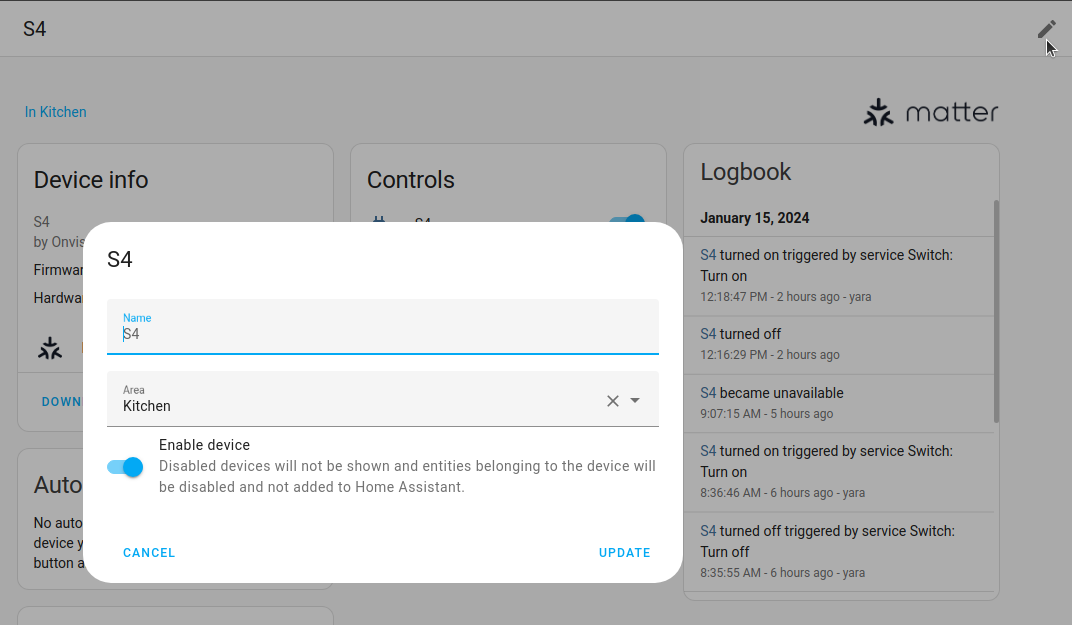
- Your shade is now ready to use.
Can't find the answers you're looking for?
We're here to help. Contact our support team at
Comments
0 comments
Please sign in to leave a comment.